
What are Alt Codes?
Alt, short for Alternate, is a modifier key on keyboards, often used with numeric keypads to produce characters.
These codes offer a method for typing symbols not directly available on a standard keyboard layout, enhancing character input versatility.
Alt codes activate menu bars and, combined with letters, trigger specific menu commands within applications, streamlining navigation.
The key’s functionality extends to window management, like closing applications with Alt+F4, and efficient task switching.
Understanding Alt’s role unlocks a range of keyboard shortcuts and expands a user’s ability to interact with computer systems;
Definition of Alt Codes
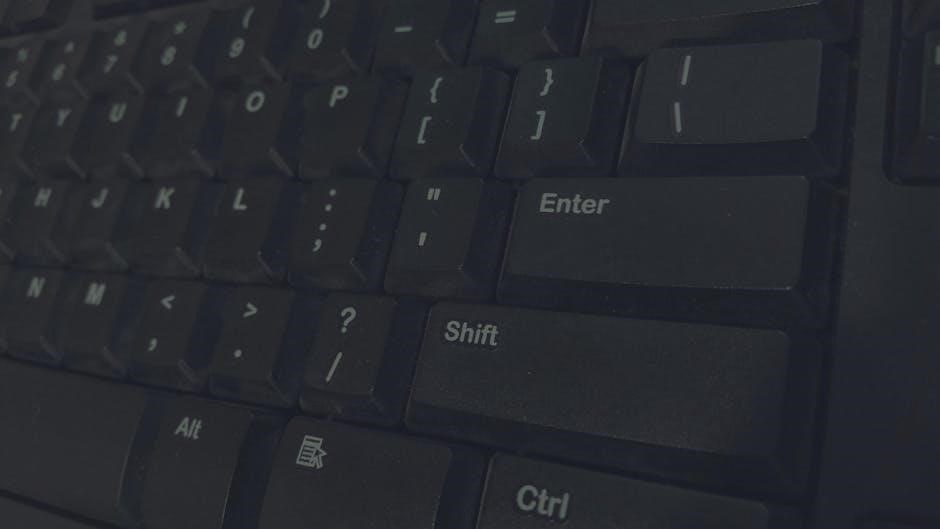
Alt Codes are numerical sequences entered using the Alt key combined with the numeric keypad on a keyboard. These codes represent specific characters, symbols, or letters not readily accessible through standard keyboard input. Essentially, they provide an alternative method for typing a wider range of characters than typically available.
The process involves holding down the Alt key while typing a numerical code on the numeric keypad – not the number row above the letters. This action instructs the operating system to display the corresponding character associated with that code. They function as a workaround for characters absent from a user’s current keyboard layout or font selection.
Historically, Alt Codes were crucial for accessing special characters in Windows environments, predating the widespread adoption of Unicode and character maps. While still functional, their relevance has evolved with modern computing advancements.
History and Origin of Alt Codes
Alt Codes emerged with the early development of IBM PC systems and the MS-DOS operating system. Initially, these codes were a necessity due to the limited character sets supported by early computer hardware and software. They provided a way to access characters beyond the standard ASCII set, particularly for internationalization and specialized symbols.
The origin lies in the need to represent characters not directly mapped to physical keys. The Alt key, originally intended as a modifier for other commands, was repurposed to access these extended character sets when combined with numeric keypad input. This system allowed users to generate a broader range of characters without requiring additional hardware.
As Windows evolved, Alt Codes were integrated into the operating system, becoming a standard feature for character input. However, with the advent of Unicode, their primary function has diminished, though they remain a functional legacy feature.

How to Use Alt Codes
Alt Codes are activated by holding the Alt key while typing a specific numeric code on the numeric keypad—a crucial input method.
This combination generates corresponding characters, symbols, or currency signs, expanding typing capabilities beyond standard keyboard layouts.
Using the Numeric Keypad
Alt Codes fundamentally rely on the numeric keypad, located on the right side of most full-sized keyboards. It’s essential to understand that the standard number row above the letters will not work for inputting these codes; only the dedicated keypad will suffice.
To utilize an Alt Code, firmly hold down the Alt key, then input the four-digit code using the numeric keypad. Release the Alt key, and the corresponding character should appear. For codes shorter than four digits, leading zeros are often required – for example, Alt + 0169 for the copyright symbol (©).
Practice is key to memorizing frequently used codes. Many online resources and downloadable PDF lists (like a complete Alt Code list) provide comprehensive charts for quick reference, aiding in efficient character input and symbol creation.
Enabling Num Lock
The Num Lock key is absolutely crucial for Alt Code functionality. This key toggles the numeric keypad between number input and navigation controls (arrow keys, Home, End, etc.). If Num Lock is disabled, pressing numbers on the keypad will move the cursor instead of entering digits for the Alt Code.
Typically, a small indicator light on the keyboard illuminates when Num Lock is active. If the light isn’t lit, press the Num Lock key to enable it. Ensure it’s on before attempting to use Alt Codes. A complete Alt Code list PDF will be useless if the keypad isn’t functioning correctly.
On some laptops, the Num Lock function might be combined with another key (often Fn), requiring a simultaneous press (e.g., Fn + Num Lock). Check your laptop’s manual for specific instructions.
Alt Code Variations (Windows vs. macOS)
Alt Code usage differs significantly between Windows and macOS. Windows primarily utilizes the Alt key combined with numeric keypad entries to generate special characters. A comprehensive Alt Code list PDF is readily available for Windows users, detailing these combinations.
macOS, however, employs the Option key (⌥) instead of Alt, alongside various key combinations, including letters and symbols, to produce similar results. There isn’t a direct equivalent of Windows Alt Codes on macOS; instead, it relies on character palettes and keyboard shortcuts.
While some Alt key combinations might function similarly across platforms for basic actions, accessing special characters requires learning macOS-specific shortcuts. A Windows-focused Alt Code list PDF won’t be directly applicable on a Mac.

Common Alt Code Categories
Alt Codes encompass diverse categories: special characters, symbols (like ©, ®, ™), and currency symbols (¥, £, €).
PDF lists categorize these, offering quick access to a wide range of non-standard characters.
Alt Codes for Special Characters
Alt Codes unlock a vast library of special characters beyond standard keyboard input. These include accented letters crucial for many languages – think é, à, ü, and ñ – enabling multilingual typing without complex software.
Diacritical marks, like umlauts and cedillas, are easily accessible. Mathematical symbols (∫, √, π) are also readily available, benefiting scientific and technical writing.
PDF lists dedicated to special characters often categorize them by language or function, simplifying the search process.
Beyond letters and math, you’ll find boxed characters (░, ▒, ▓), and various line-drawing characters (─, │, ┌) useful for creating simple diagrams or visual separators within text documents.
These codes provide a convenient alternative to character maps or copy-pasting, streamlining workflows for frequent users.
Alt Codes for Symbols
Alt Codes provide access to a diverse range of symbols often absent from standard keyboards. These encompass copyright (©), registered trademark (®), and trademark symbols (™), essential for legal and branding contexts.
Various arrow symbols (←, →, ↑, ↓) are easily generated, useful for creating lists, diagrams, or indicating direction within text.
PDF guides dedicated to symbols frequently organize them by category – geometric shapes (△, □, ◊), technical symbols (¶, §), and miscellaneous glyphs.
Musical notation symbols (♪, ♫, ♬) are also accessible, benefiting musicians and music enthusiasts.
These codes offer a quick and efficient method for inserting these symbols into documents, presentations, or any text-based application, enhancing visual communication.
Alt Codes for Currency Symbols
Alt Codes unlock a comprehensive selection of currency symbols beyond the standard dollar sign ($). Users can easily input the Euro (€), British Pound (£), Japanese Yen (¥), and Swiss Franc (₣) directly into their documents.
PDF lists dedicated to currency symbols often include less common denominations like the Indian Rupee (₹), Korean Won (₩), and Chinese Yuan (¥), facilitating international communication.
These codes are particularly useful for financial reports, invoices, or any document requiring precise currency representation.
Accessing these symbols via Alt Codes eliminates the need to copy and paste, streamlining workflow and improving efficiency.
Comprehensive PDF guides categorize these symbols for easy reference, ensuring accurate and consistent currency display across various platforms.

Finding Alt Code Lists
Numerous online resources and downloadable PDF documents provide complete Alt Code lists for easy access to special characters and symbols.
These lists categorize codes, simplifying the search for specific characters and enhancing user convenience.
Online Alt Code Charts and Resources
Alt code charts are readily available online, offering a convenient way to discover and utilize special characters. Websites dedicated to character encoding and keyboard shortcuts frequently host comprehensive lists, often categorized for easier navigation. These resources typically display the character alongside its corresponding Alt code, allowing users to quickly copy and paste or memorize frequently used codes.
Many sites offer interactive charts where you can simply click a character to reveal its Alt code. Several PDF versions of complete Alt code lists are also accessible through search engines, providing a downloadable reference for offline use. These charts are invaluable for tasks requiring symbols not found on a standard keyboard, such as writing mathematical equations, creating unique documents, or adding special formatting to text.
Remember to verify the source of any downloaded PDF to ensure its accuracy and security.
PDF Alt Code Lists – Availability and Benefits
PDF Alt code lists are widely available online through a simple web search, offering a portable and easily accessible reference guide. These documents compile extensive tables mapping Alt key combinations to their corresponding characters, symbols, and currency signs; The benefit of a PDF format lies in its platform independence; it can be viewed consistently across various operating systems – Windows, macOS, and Linux – without formatting issues.
Downloading a PDF allows offline access, crucial when an internet connection is unavailable. Many lists are categorized, simplifying the search for specific character types. They’re particularly useful for users who frequently require special characters in documents, spreadsheets, or other applications. Ensure the PDF source is reputable to guarantee accuracy and avoid potential security risks.
Having a readily available PDF streamlines workflow and boosts productivity.
Creating Your Own Alt Code List (PDF)
While numerous PDF Alt code lists exist, crafting a personalized one offers tailored convenience. Begin by utilizing online Alt code charts as a base, then customize the list to include only the characters you frequently use. Software like Microsoft Word or Google Docs allows easy table creation for organizing Alt code and character pairings. Focus on symbols relevant to your work or hobbies, streamlining the lookup process.
Once the table is complete, save or “print” the document as a PDF. This ensures portability and consistent formatting. Consider categorizing your list – special characters, currency, mathematical symbols – for quicker navigation. Regularly updating your custom PDF as your needs evolve maintains its usefulness.
A personalized list maximizes efficiency!

Troubleshooting Alt Codes
If Alt codes aren’t functioning, verify Num Lock is enabled and use the numeric keypad. Application compatibility can also cause issues.
Incorrect input or system settings may prevent proper character display, requiring troubleshooting steps.
Alt Codes Not Working – Common Issues
Several factors can prevent Alt codes from functioning correctly. The most frequent issue is a disabled Num Lock key; ensure it’s activated as the numeric keypad is essential.
Using the number row instead of the keypad will not work. Some applications might not fully support Alt code input, leading to unexpected results or no display at all.
System-level conflicts, such as remapped keys or conflicting software, can also interfere with Alt code functionality. Occasionally, a restart can resolve temporary glitches.
Furthermore, incorrect key combinations or typos in the code itself will prevent the desired character from appearing. Verify the code against a reliable Alt code list.
Finally, ensure your keyboard drivers are up-to-date, as outdated drivers can sometimes cause compatibility problems with special character input methods.
Alt Codes Not Displaying Correctly
If an Alt code appears as a square, diamond, or question mark, the current font likely doesn’t support that specific character. Different fonts contain varying character sets.
Switching to a font like Arial, Times New Roman, or Unicode MS can often resolve this issue, as they generally have broader character support. Ensure the application allows font changes.
Character encoding mismatches can also cause display problems. Verify the application and system are using a compatible encoding, such as UTF-8, which supports a wide range of characters.
Sometimes, the application’s rendering engine might have issues displaying certain characters correctly. Trying a different application can help isolate the problem.
Finally, confirm the Alt code itself is correct by cross-referencing it with a reliable Alt code list or Unicode chart to avoid input errors.
Alt Tab Issues and Alt Key Functionality
Problems with Alt+Tab switching often stem from the Alt key being reassigned or disabled by another application. System utilities or gaming software can sometimes interfere with this core functionality.
Check for conflicting keyboard shortcuts within your operating system’s settings. A program might have hijacked Alt+Tab for its own commands. Restarting the computer can often resolve temporary conflicts.
If Alt isn’t functioning correctly in general, ensure Num Lock is enabled when using Alt codes, as it’s required for numeric keypad input. Verify the Alt key isn’t physically damaged.
Certain accessibility features can also impact key functionality. Review accessibility settings to ensure they aren’t inadvertently altering Alt key behavior.
Ultimately, a clean boot can help identify if a third-party application is causing the Alt+Tab or Alt key issues.

Advanced Alt Code Usage
Alt codes function consistently across applications like Word and Excel, though display can vary. They leverage Unicode for broader character support.
Customization options are limited, but understanding Unicode expands possibilities beyond standard Alt code lists.
Alt Codes in Different Applications (Word, Excel, etc.)
Alt codes generally function consistently across various applications like Microsoft Word, Excel, and even some text editors, providing a universal method for inserting special characters. However, the rendering of these characters can sometimes differ slightly depending on the font selected within each application.
In Word, Alt codes seamlessly integrate into text documents, allowing for the inclusion of symbols and characters not readily available on the keyboard. Excel also supports Alt codes, enabling users to input specialized symbols into cells. Some applications might require a slightly different approach, such as holding Alt and typing the code on the numeric keypad, while others may accept it directly.
It’s important to note that the availability and correct display of Alt codes are contingent upon the application’s support for the corresponding Unicode character. While most common applications handle them well, compatibility isn’t guaranteed across all software.
Unicode and Alt Codes
Alt codes are fundamentally linked to the Unicode standard, a universal character encoding system. Each Alt code essentially represents a specific Unicode character, allowing for a vast range of symbols and letters from different languages to be generated. The numeric keypad input translates directly into a Unicode value.
Before Unicode, different character encodings led to compatibility issues. Alt codes, particularly those representing characters within the Unicode range, offer a consistent way to input these characters regardless of the system’s default encoding.
However, not all Alt codes map directly to Unicode; some are remnants of older, system-specific character sets. Understanding this connection is crucial for ensuring characters display correctly across different platforms and applications, as Unicode support is essential for proper rendering.
Customizing Alt Codes (Limited Options)
Direct customization of Alt codes is severely restricted by operating systems. Unlike remapping keyboard keys, altering the fundamental Alt code to character mapping isn’t a standard feature in Windows or macOS. The system dictates which Unicode character corresponds to each code.
However, some applications offer limited workarounds. Within specific programs like Microsoft Word, AutoCorrect features can be leveraged to replace a specific Alt code sequence with a desired symbol or text string, effectively creating a custom shortcut.
Third-party software exists that attempts to remap keys at a system level, but these solutions often come with stability concerns and may not reliably intercept Alt code input. Therefore, true customization remains largely unavailable.

The Future of Alt Codes
Alt codes face declining relevance as character maps and emoji pickers become prevalent. Modern interfaces prioritize visual selection over memorized numeric codes.
Despite this, Alt codes retain niche utility for power users and specific technical applications requiring precise character input.
Relevance in Modern Computing
Despite the rise of graphical character mappers and extensive emoji libraries, Alt codes haven’t entirely faded from modern computing. While less intuitive for casual users, they continue to offer a surprisingly efficient method for inputting specialized symbols and characters, particularly within technical fields.
For programmers, engineers, and those working with specific character sets, memorizing key Alt codes can be faster than navigating menus. They remain valuable in environments where direct access to a character map isn’t readily available or practical. Furthermore, Alt codes provide a consistent method across different Windows versions, a reliability some users appreciate.
However, their relevance is undeniably diminishing. The trend towards visual interfaces and the increasing availability of Unicode-based input methods suggest Alt codes will become increasingly niche, primarily utilized by those already familiar with the system.
Alternatives to Alt Codes (Character Map, Emoji Pickers)
Modern operating systems offer several alternatives to Alt codes for accessing special characters. The built-in Character Map (Windows) provides a visual interface to browse and copy characters, eliminating the need to memorize codes. It’s a more intuitive approach for infrequent users.
Emoji pickers, now standard in most platforms, offer a vast library of symbols and pictograms, surpassing the capabilities of Alt codes. These are easily accessible via keyboard shortcuts (like Windows key + .) and integrate seamlessly into text fields.
Unicode input methods, allowing direct character entry by Unicode value, provide another alternative. While requiring some technical knowledge, they offer greater flexibility. Ultimately, these alternatives prioritize user-friendliness and broader character support over the efficiency of memorized Alt codes.